> ## Documentation Index
> Fetch the complete documentation index at: https://docs.waypay.live/llms.txt
> Use this file to discover all available pages before exploring further.
# Checkout Flow
> Understanding the hosted checkout payment flow
## Overview
The checkout flow is the simplest way to accept payments with Waypay. It provides a fully hosted payment page where customers can complete their purchase using various payment methods including cards and mobile wallets.
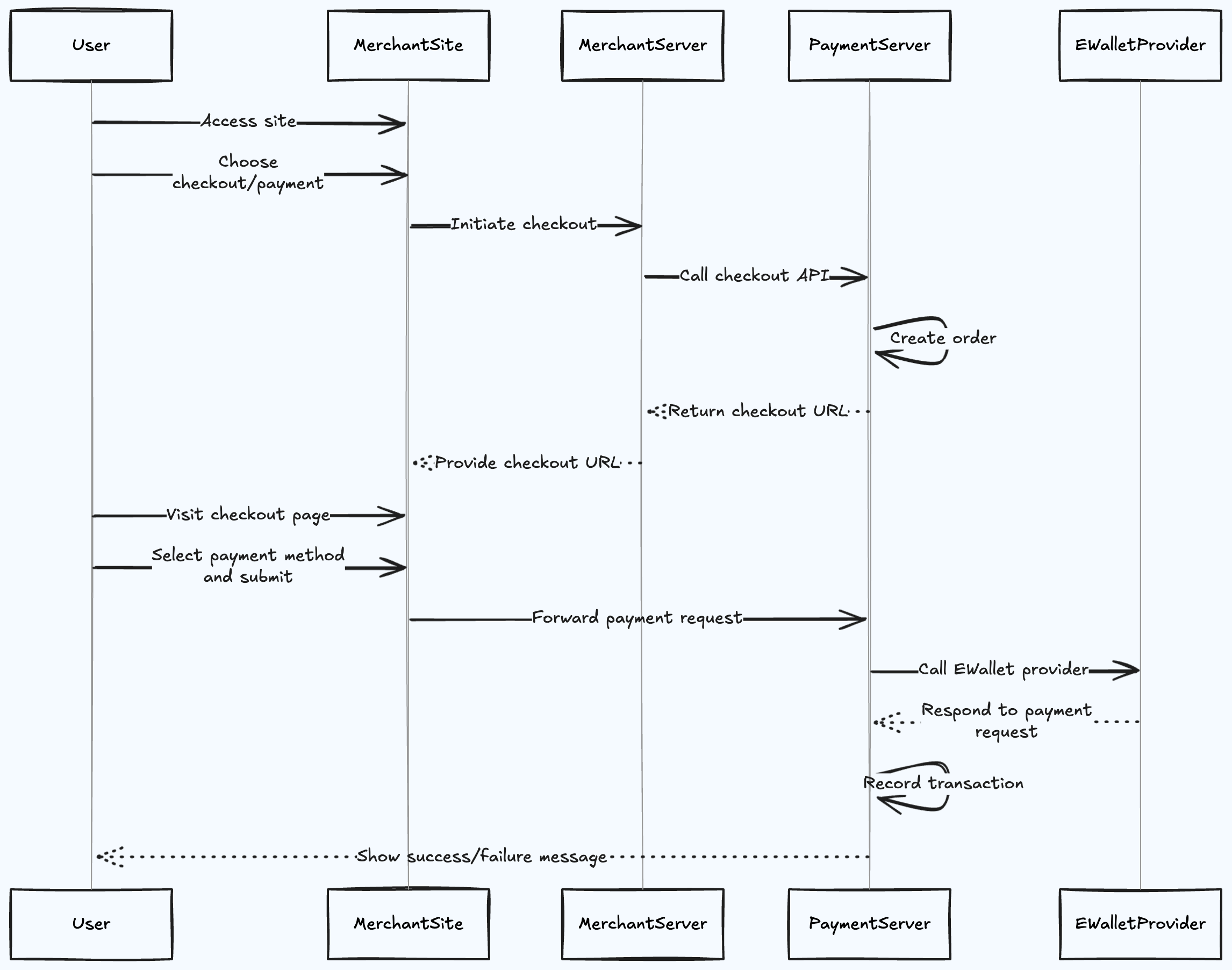
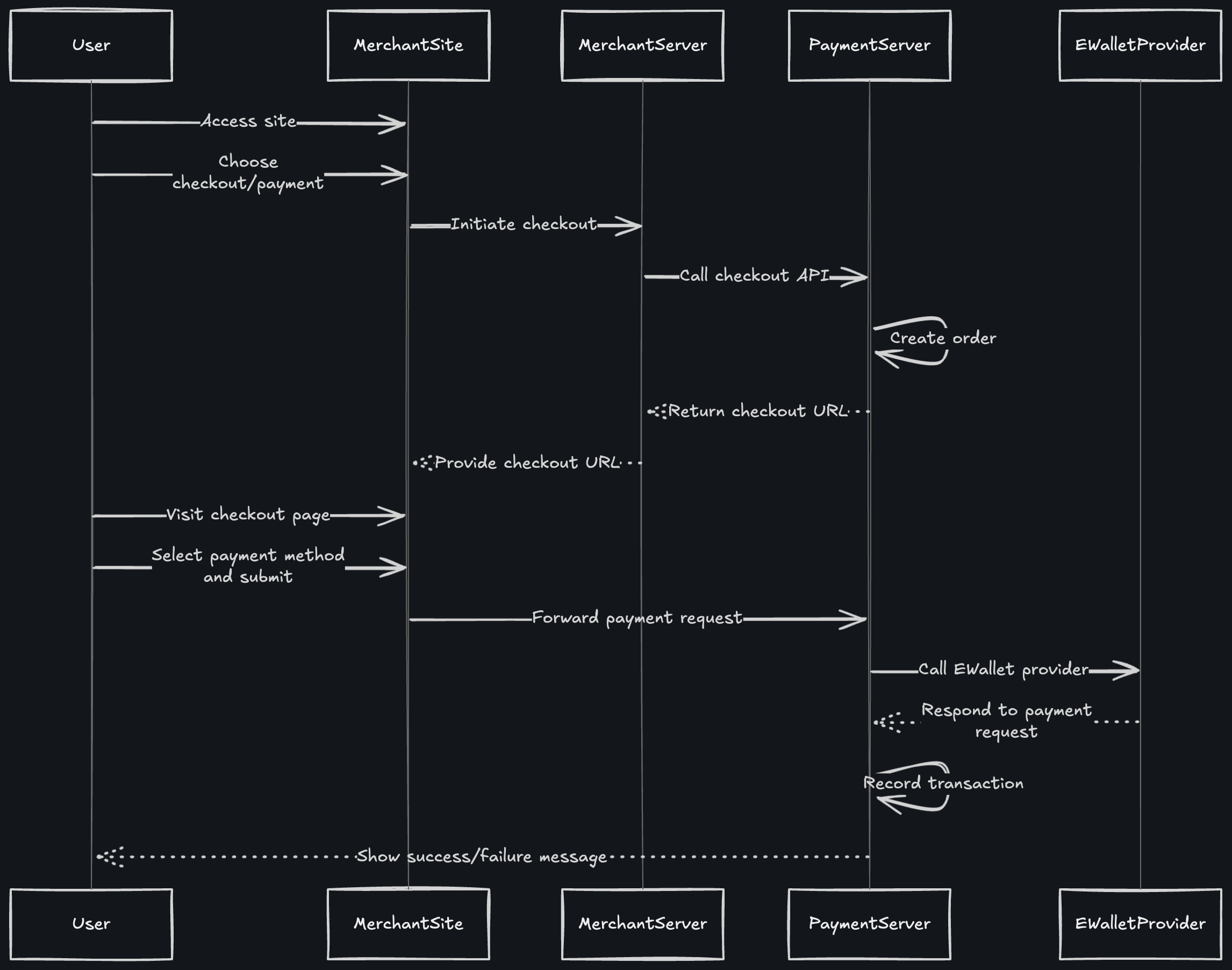
## Flow Diagram
 ## Step-by-Step Flow
### Step 1: User Accesses Your Site
The customer visits your merchant website and browses products or services.
### Step 2: User Chooses Checkout/Payment
The customer adds items to cart and proceeds to checkout, ready to make a payment.
### Step 3: Merchant Site Initiates Checkout
Your merchant site sends a request to your backend server to initiate the checkout process.
### Step 4: Merchant Server Calls Checkout API
Your server makes a call to the Waypay `/Payment/initiate-checkout` endpoint with payment details:
```bash cURL theme={null}
curl --request POST \
--url https://gateway.dev.waypay.live/Gateway/v1/Payment/initiate-checkout \
--header 'SWICH-API-Key: pk_test_xxxxxxxx' \
--header 'Content-Type: application/json' \
--data '{
"amount": 2500,
"currency": "PKR",
"description": "Order #12345",
"customerRef": {
"name": "Ali Ahmed",
"email": "ali@example.com",
"cnic": "4210112345678",
"phone": "03001234567"
},
"orderRef": {
"orderRef": "ORD12345"
},
"callbackUrl": "https://yoursite.com/payment/callback"
}'
```
```javascript Node.js theme={null}
const response = await fetch(
'https://gateway.dev.waypay.live/Gateway/v1/Payment/initiate-checkout',
{
method: 'POST',
headers: {
'SWICH-API-Key': process.env.WAYPAY_API_KEY,
'Content-Type': 'application/json'
},
body: JSON.stringify({
amount: 2500,
currency: 'PKR',
description: 'Order #12345',
customerRef: {
name: 'Ali Ahmed',
email: 'ali@example.com',
cnic: '4210112345678',
phone: '03001234567'
},
orderRef: {
orderRef: 'ORD12345'
},
callbackUrl: 'https://yoursite.com/success'
})
}
);
const data = await response.json();
```
```python Python theme={null}
import requests
import os
response = requests.post(
'https://gateway.dev.waypay.live/Gateway/v1/Payment/initiate-checkout',
headers={
'SWICH-API-Key': os.environ.get('WAYPAY_API_KEY'),
'Content-Type': 'application/json'
},
json={
'amount': 2500,
'currency': 'PKR',
'description': 'Order #12345',
'customerRef': {
'name': 'Ali Ahmed',
'email': 'ali@example.com',
'cnic': '4210112345678',
'phone': '03001234567'
},
'orderRef': {
'orderRef': 'ORD12345'
},
'callbackUrl': 'https://yoursite.com/payment/callback'
}
)
```
### Step 5: Payment Server Creates Order
The Waypay Payment Server receives your request and creates a payment order in the system.
### Step 6: Return Checkout URL
Waypay returns a checkout URL to your merchant server:
```json theme={null}
{
"paymentIntentId": "550e8400-e29b-41d4-a716-446655440000",
"checkoutUrl": "https://checkout.waypay.com/pay/abc123xyz",
"expiresAt": "2025-12-13T12:00:00Z"
}
```
### Step 7: Provide Checkout URL to User
Your merchant site receives the checkout URL and redirects the customer to it.
### Step 8: User Visits Checkout Page
The customer is taken to the Waypay hosted checkout page where they see:
* Order summary
* Payment amount
* Available payment methods
* Customer information
### Step 9: Select Payment Method and Submit
The customer:
1. Reviews the order details
2. Selects their preferred payment method (card, JazzCash, Easypaisa, etc.)
3. Enters payment credentials
4. Submits the payment
### Step 10: Forward Payment Request
The merchant site forwards the payment request to the Waypay Payment Server for processing.
### Step 11: Call E-Wallet Provider
The Payment Server communicates with the selected E-Wallet Provider (JazzCash, Easypaisa, etc.) to process the transaction.
### Step 12: E-Wallet Provider Responds
The E-Wallet Provider:
* Validates payment credentials
* Processes the transaction
* Returns the result (success/failure)
### Step 13: Record Transaction
The Payment Server records the transaction details and final status in the database.
### Step 14: Show Success/Failure Message
The user is shown a success or failure message on the checkout page, then redirected to your callback URL with payment status details.
## Payment Methods Supported
JazzCash, Easypaisa, NayaPay, SadaPay
Visa, Mastercard (coming soon)
Direct bank transfers (coming soon)
Installment options (coming soon)
## Callback URL
### How It Works
After payment completion (success or failure), the customer is redirected to your `callbackUrl` with payment status details appended as query parameters.
**Example callback redirect:**
```
https://yoursite.com/payment/callback?payment_intent_id=550e8400-e29b-41d4-a716-446655440000&status=completed&order_ref=ORD12345
```
**Query parameters added:**
* `payment_intent_id` - The unique payment intent ID
* `status` - Payment status (e.g., "completed", "cancelled", "failed")
* `order_ref` - Your order reference number
**Never rely solely on callback URL redirects for order fulfillment.** Always verify payment status using webhooks or the Transaction API before delivering goods/services.
## Best Practices
After customer returns to your site, verify the payment status by:
1. Checking webhook notifications
2. Querying the transaction API
3. Never trust query parameters alone
Checkout URLs expire after the time specified in `expiresAt`. Always check if the URL is still valid before redirecting customers.
Use meaningful `orderRef` values that help you identify orders in your system.
* Use HTTPS URLs
* Ensure URLs are publicly accessible
* Handle both success and failure scenarios
* Don't expose sensitive information in URLs
* Your callback URL can include custom parameters that will be preserved
Always store the `paymentIntentId` in your database linked to the order for future reference and reconciliation.
## Security Considerations
Never expose your API key on the frontend. Always call the checkout API from your backend server.
Ensure callback URLs use HTTPS to protect customer data in transit.
Verify webhook signatures to ensure notifications are from Waypay.
Always validate the payment amount matches your order total before creating checkout.
## Checkout Page Features
The Waypay hosted checkout page includes:
* ✅ **Responsive Design** - Works on desktop, tablet, and mobile
* ✅ **Multiple Payment Methods** - Cards, mobile wallets, and more
* ✅ **Multi-language Support** - English and Urdu
* ✅ **Real-time Validation** - Instant feedback on form inputs
* ✅ **Security** - PCI DSS compliant infrastructure
* ✅ **Brand Customization** - Display your logo and brand colors
## Testing
In test mode, use these credentials:
### JazzCash Test
* Mobile: `03001234567`
* CNIC Last 6: `123456`
* OTP: `123456`
### Easypaisa Test
* Mobile: `03001234567`
* CNIC Last 6: `123456`
* OTP: `123456`
Test transactions won't charge real money and won't affect production data.
## Next Steps
View complete API documentation
Configure payment notifications
Track payment status
Brand your checkout page
## Step-by-Step Flow
### Step 1: User Accesses Your Site
The customer visits your merchant website and browses products or services.
### Step 2: User Chooses Checkout/Payment
The customer adds items to cart and proceeds to checkout, ready to make a payment.
### Step 3: Merchant Site Initiates Checkout
Your merchant site sends a request to your backend server to initiate the checkout process.
### Step 4: Merchant Server Calls Checkout API
Your server makes a call to the Waypay `/Payment/initiate-checkout` endpoint with payment details:
```bash cURL theme={null}
curl --request POST \
--url https://gateway.dev.waypay.live/Gateway/v1/Payment/initiate-checkout \
--header 'SWICH-API-Key: pk_test_xxxxxxxx' \
--header 'Content-Type: application/json' \
--data '{
"amount": 2500,
"currency": "PKR",
"description": "Order #12345",
"customerRef": {
"name": "Ali Ahmed",
"email": "ali@example.com",
"cnic": "4210112345678",
"phone": "03001234567"
},
"orderRef": {
"orderRef": "ORD12345"
},
"callbackUrl": "https://yoursite.com/payment/callback"
}'
```
```javascript Node.js theme={null}
const response = await fetch(
'https://gateway.dev.waypay.live/Gateway/v1/Payment/initiate-checkout',
{
method: 'POST',
headers: {
'SWICH-API-Key': process.env.WAYPAY_API_KEY,
'Content-Type': 'application/json'
},
body: JSON.stringify({
amount: 2500,
currency: 'PKR',
description: 'Order #12345',
customerRef: {
name: 'Ali Ahmed',
email: 'ali@example.com',
cnic: '4210112345678',
phone: '03001234567'
},
orderRef: {
orderRef: 'ORD12345'
},
callbackUrl: 'https://yoursite.com/success'
})
}
);
const data = await response.json();
```
```python Python theme={null}
import requests
import os
response = requests.post(
'https://gateway.dev.waypay.live/Gateway/v1/Payment/initiate-checkout',
headers={
'SWICH-API-Key': os.environ.get('WAYPAY_API_KEY'),
'Content-Type': 'application/json'
},
json={
'amount': 2500,
'currency': 'PKR',
'description': 'Order #12345',
'customerRef': {
'name': 'Ali Ahmed',
'email': 'ali@example.com',
'cnic': '4210112345678',
'phone': '03001234567'
},
'orderRef': {
'orderRef': 'ORD12345'
},
'callbackUrl': 'https://yoursite.com/payment/callback'
}
)
```
### Step 5: Payment Server Creates Order
The Waypay Payment Server receives your request and creates a payment order in the system.
### Step 6: Return Checkout URL
Waypay returns a checkout URL to your merchant server:
```json theme={null}
{
"paymentIntentId": "550e8400-e29b-41d4-a716-446655440000",
"checkoutUrl": "https://checkout.waypay.com/pay/abc123xyz",
"expiresAt": "2025-12-13T12:00:00Z"
}
```
### Step 7: Provide Checkout URL to User
Your merchant site receives the checkout URL and redirects the customer to it.
### Step 8: User Visits Checkout Page
The customer is taken to the Waypay hosted checkout page where they see:
* Order summary
* Payment amount
* Available payment methods
* Customer information
### Step 9: Select Payment Method and Submit
The customer:
1. Reviews the order details
2. Selects their preferred payment method (card, JazzCash, Easypaisa, etc.)
3. Enters payment credentials
4. Submits the payment
### Step 10: Forward Payment Request
The merchant site forwards the payment request to the Waypay Payment Server for processing.
### Step 11: Call E-Wallet Provider
The Payment Server communicates with the selected E-Wallet Provider (JazzCash, Easypaisa, etc.) to process the transaction.
### Step 12: E-Wallet Provider Responds
The E-Wallet Provider:
* Validates payment credentials
* Processes the transaction
* Returns the result (success/failure)
### Step 13: Record Transaction
The Payment Server records the transaction details and final status in the database.
### Step 14: Show Success/Failure Message
The user is shown a success or failure message on the checkout page, then redirected to your callback URL with payment status details.
## Payment Methods Supported
JazzCash, Easypaisa, NayaPay, SadaPay
Visa, Mastercard (coming soon)
Direct bank transfers (coming soon)
Installment options (coming soon)
## Callback URL
### How It Works
After payment completion (success or failure), the customer is redirected to your `callbackUrl` with payment status details appended as query parameters.
**Example callback redirect:**
```
https://yoursite.com/payment/callback?payment_intent_id=550e8400-e29b-41d4-a716-446655440000&status=completed&order_ref=ORD12345
```
**Query parameters added:**
* `payment_intent_id` - The unique payment intent ID
* `status` - Payment status (e.g., "completed", "cancelled", "failed")
* `order_ref` - Your order reference number
**Never rely solely on callback URL redirects for order fulfillment.** Always verify payment status using webhooks or the Transaction API before delivering goods/services.
## Best Practices
After customer returns to your site, verify the payment status by:
1. Checking webhook notifications
2. Querying the transaction API
3. Never trust query parameters alone
Checkout URLs expire after the time specified in `expiresAt`. Always check if the URL is still valid before redirecting customers.
Use meaningful `orderRef` values that help you identify orders in your system.
* Use HTTPS URLs
* Ensure URLs are publicly accessible
* Handle both success and failure scenarios
* Don't expose sensitive information in URLs
* Your callback URL can include custom parameters that will be preserved
Always store the `paymentIntentId` in your database linked to the order for future reference and reconciliation.
## Security Considerations
Never expose your API key on the frontend. Always call the checkout API from your backend server.
Ensure callback URLs use HTTPS to protect customer data in transit.
Verify webhook signatures to ensure notifications are from Waypay.
Always validate the payment amount matches your order total before creating checkout.
## Checkout Page Features
The Waypay hosted checkout page includes:
* ✅ **Responsive Design** - Works on desktop, tablet, and mobile
* ✅ **Multiple Payment Methods** - Cards, mobile wallets, and more
* ✅ **Multi-language Support** - English and Urdu
* ✅ **Real-time Validation** - Instant feedback on form inputs
* ✅ **Security** - PCI DSS compliant infrastructure
* ✅ **Brand Customization** - Display your logo and brand colors
## Testing
In test mode, use these credentials:
### JazzCash Test
* Mobile: `03001234567`
* CNIC Last 6: `123456`
* OTP: `123456`
### Easypaisa Test
* Mobile: `03001234567`
* CNIC Last 6: `123456`
* OTP: `123456`
Test transactions won't charge real money and won't affect production data.
## Next Steps
View complete API documentation
Configure payment notifications
Track payment status
Brand your checkout page