> ## Documentation Index
> Fetch the complete documentation index at: https://docs.waypay.live/llms.txt
> Use this file to discover all available pages before exploring further.
# Transaction Status Processing
> Understanding how Waypay processes and updates transaction status
## Overview
After a payment is initiated, Waypay continuously monitors and updates the transaction status. This guide explains the status processing flow and how different transaction types (deposits and withdrawals) affect your merchant balance, including fee deductions.
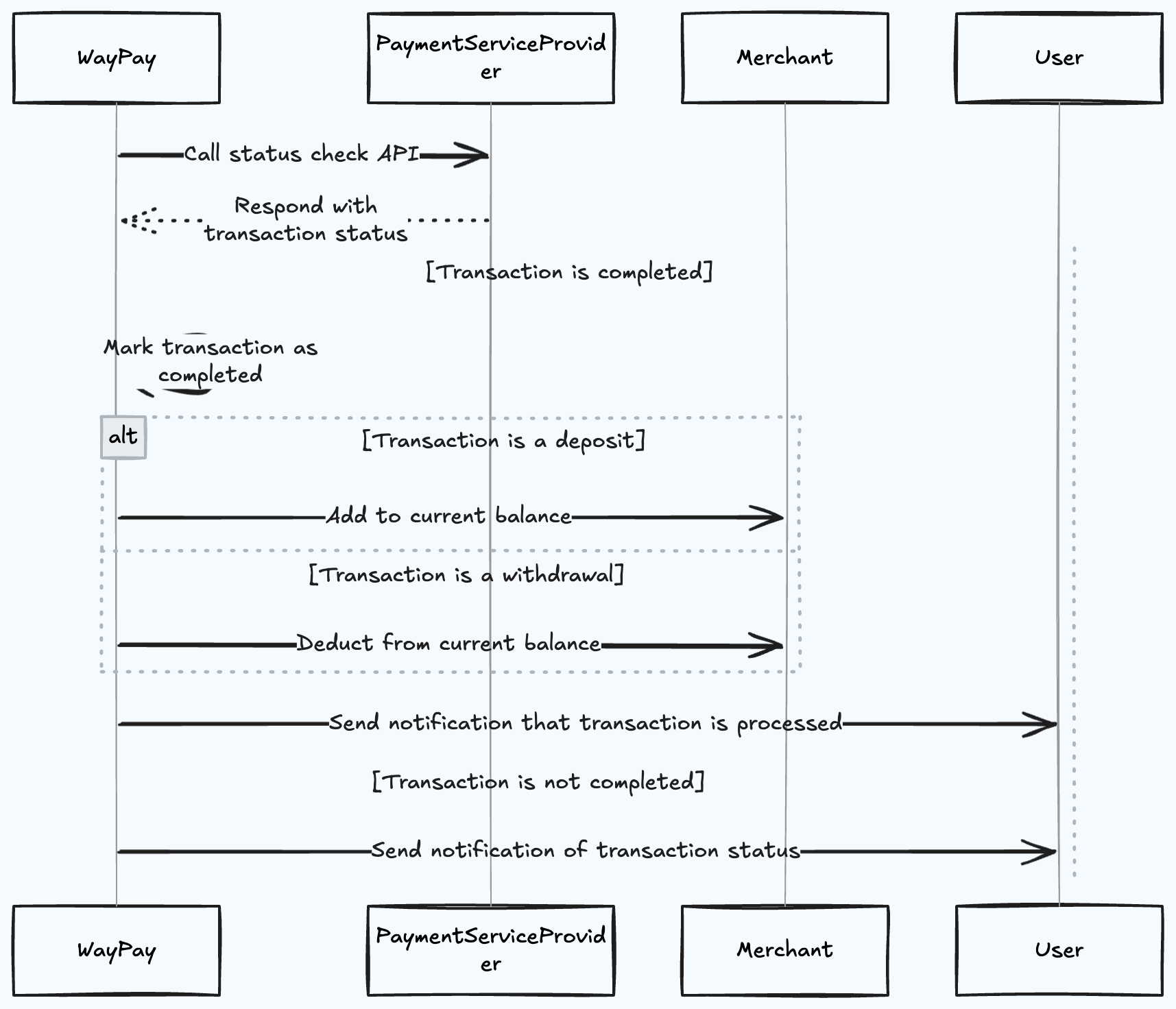
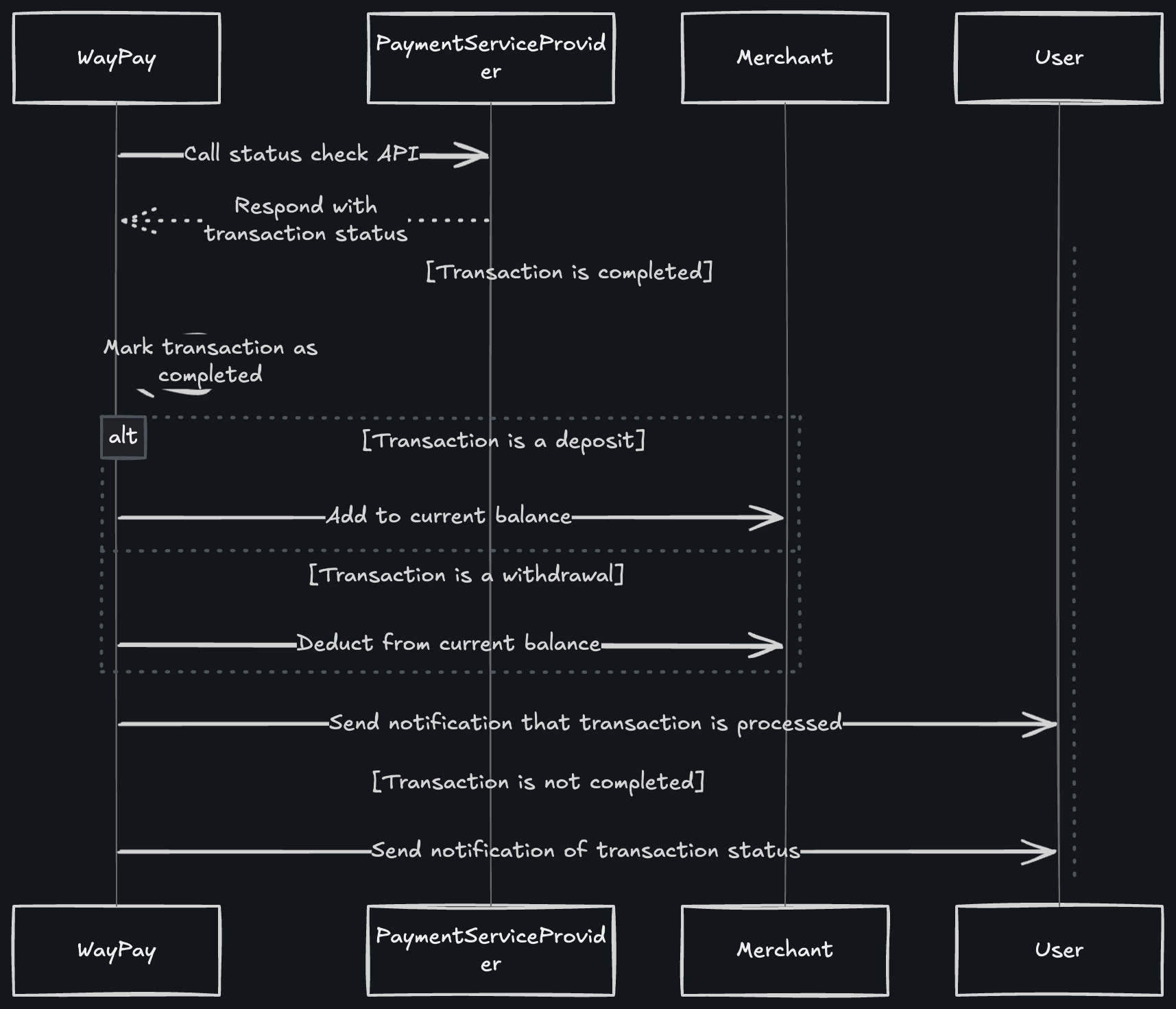
## Flow Diagram
 ## Status Processing Flow
### Step 1: Status Check API Call
WayPay periodically calls the Payment Service Provider's status check API to verify the current state of the transaction.
### Step 2: Transaction Status Response
The Payment Service Provider responds with the current transaction status. This could be:
* Pending
* Completed
* Failed
* Cancelled
* Processing
### Step 3: Mark Transaction as Completed
If the transaction is confirmed as completed, WayPay marks it accordingly in the system.
## Balance Updates Based on Transaction Type
### For Deposit Transactions
When a transaction is marked as a deposit:
1. **Calculate Net Amount**
* Transaction fee is deducted from the deposit amount
* Net amount = Deposit amount - Transaction fee
2. **Add Net Amount to Balance**
* Only the net amount (after fee deduction) is added to your merchant balance
* Balance increases by the net amount upon confirmation
* Funds become available for use
**Example:**
```
Deposit Amount: PKR 10,000
Transaction Fee (3%): PKR 300
Net Amount: PKR 9,700
─────────────────────────────────
Current Balance: PKR 50,000
Amount Added: PKR 9,700
New Balance: PKR 59,700
```
The customer pays the full deposit amount. The fee is deducted from what you receive, not charged to the customer separately.
### For Withdrawal Transactions
When a transaction is marked as a withdrawal:
1. **Calculate Total Deduction**
* Transaction fee is added to the withdrawal amount
* Total deduction = Withdrawal amount + Transaction fee
2. **Deduct Total from Balance**
* The withdrawal amount plus fee is deducted from your merchant balance
* Customer receives the full withdrawal amount
* Balance decreases by the total amount
**Example:**
```
Withdrawal Amount: PKR 15,000
Transaction Fee (3%): PKR 450
Total Deduction: PKR 15,450
─────────────────────────────────
Current Balance: PKR 59,700
Amount Deducted: PKR 15,450
New Balance: PKR 44,250
Customer Receives: PKR 15,000
```
Always ensure your balance is sufficient to cover both the withdrawal amount AND the transaction fee before initiating a withdrawal.
### Step 4: Merchant and User Notifications
After processing the transaction:
1. **Transaction Processed Notification**
* If the transaction is completed, both merchant and user receive a success notification
* Notification includes transaction details, fees, and updated balance
2. **Transaction Status Notification**
* If the transaction is not completed (failed/cancelled), both parties are notified
* Notification includes the reason for failure if available
## Fee Information in Transactions
When querying transactions, you'll receive detailed fee information:
```json theme={null}
{
"id": "770e8400-e29b-41d4-a716-446655440000",
"amount": 10000.00,
"currency": "PKR",
"fee": 300.00,
"netAmount": 9700.00,
"txType": "Deposit",
"status": "Completed",
"description": "Product Purchase",
"createdAtUtc": "2025-12-13T10:30:00Z"
}
```
**For Deposits:**
* `amount`: Original deposit amount
* `fee`: Transaction fee deducted
* `netAmount`: Amount added to your balance (amount - fee)
**For Withdrawals:**
```json theme={null}
{
"id": "880e8400-e29b-41d4-a716-446655440000",
"amount": 15000.00,
"currency": "PKR",
"fee": 450.00,
"netAmount": 15450.00,
"txType": "Withdrawal",
"status": "Completed",
"description": "Customer Refund",
"createdAtUtc": "2025-12-13T11:00:00Z"
}
```
**For Withdrawals:**
* `amount`: Withdrawal amount sent to customer
* `fee`: Transaction fee charged
* `netAmount`: Total deducted from your balance (amount + fee)
## Transaction Statuses
**Description:** Transaction is initiated but not yet confirmed
**Balance Impact:** No change (fees not yet applied)
**Actions:**
* Wait for confirmation
* Customer may need to complete OTP verification
* Typically resolves within 5-10 minutes
**Description:** Transaction is being processed by the payment provider
**Balance Impact:** No change yet (fees pending confirmation)
**Actions:**
* Transaction is in progress
* For deposits: Awaiting confirmation from mobile wallet
* For withdrawals: Bank transfer in progress
**Description:** Transaction successfully completed
**Balance Impact:**
* Deposits: Balance increases by (amount - fee)
* Withdrawals: Balance decreases by (amount + fee)
**Actions:**
* No further action needed
* Order can be fulfilled (for deposits)
* Payout has been sent (for withdrawals)
* Fee has been charged
**Description:** Transaction could not be completed
**Balance Impact:** No change (fees not charged for failed transactions)
**Common Reasons:**
* Insufficient funds (for deposits or withdrawals)
* Invalid account details
* Customer cancelled
* Technical error
**Actions:**
* Check failure reason
* Retry if appropriate
* Contact support if needed
**Description:** Transaction was cancelled by user or system
**Balance Impact:** No change (fees reversed if previously charged)
**Actions:**
* Transaction cannot be resumed
* Create new transaction if needed
**Description:** Transaction timed out without completion
**Balance Impact:** No change (fees not charged)
**Typical Reasons:**
* Customer didn't complete OTP verification
* Session timeout
* Checkout URL expired
**Actions:**
* Create new transaction
## Monitoring Transaction Status
### Using Webhooks (Recommended)
Set up webhooks to receive real-time status updates with fee information:
```json theme={null}
{
"event": "transaction.completed",
"paymentIntentId": "550e8400-e29b-41d4-a716-446655440000",
"transactionId": "660e8400-e29b-41d4-a716-446655440000",
"status": "completed",
"amount": 1500,
"fee": 45,
"netAmount": 1455,
"currency": "PKR",
"type": "deposit",
"timestamp": "2025-12-13T10:30:00Z"
}
```
### Using API Polling
Query transaction status using the Transaction API:
```bash cURL theme={null}
curl --request GET \
--url https://gateway.dev.waypay.live/Gateway/v1/Transaction/by-ref/TXN123456 \
--header 'SWICH-API-Key: pk_test_xxxxxxxx'
```
```javascript Node.js theme={null}
const response = await fetch(
'https://gateway.dev.waypay.live/Gateway/v1/Transaction/by-ref/TXN123456',
{
headers: {
'SWICH-API-Key': process.env.WAYPAY_API_KEY
}
}
);
const transaction = await response.json();
console.log('Status:', transaction.status);
console.log('Fee:', transaction.fee);
console.log('Net Amount:', transaction.netAmount);
```
```python Python theme={null}
import requests
import os
response = requests.get(
'https://gateway.dev.waypay.live/Gateway/v1/Transaction/by-ref/TXN123456',
headers={
'SWICH-API-Key': os.environ.get('WAYPAY_API_KEY')
}
)
transaction = response.json()
print(f"Status: {transaction['status']}")
print(f"Fee: {transaction['fee']}")
print(f"Net Amount: {transaction['netAmount']}")
```
## Balance Reconciliation
### Checking Current Balance
Query your wallet balance to see pending and available funds:
```bash theme={null}
curl --request POST \
--url https://gateway.dev.waypay.live/Gateway/v1/Account/query-balance \
--header 'SWICH-API-Key: pk_test_xxxxxxxx'
```
**Response:**
```json theme={null}
{
"userId": "550e8400-e29b-41d4-a716-446655440000",
"walletId": "660e8400-e29b-41d4-a716-446655440000",
"currentBalance": 125000.50,
"pendingBalance": 15000.00,
"availableBalance": 110000.50,
"currency": "PKR",
"pendingTransactionCount": 5,
"pendingByTransactionType": {
"Deposit": 10000.00,
"Withdrawal": 5000.00
},
"retrievedAt": "2025-12-13T10:30:00Z"
}
```
### Understanding Balance Types
| Balance Type | Description | Fee Consideration |
| --------------------- | -------------------------------------------------- | ---------------------------------------- |
| **Current Balance** | Total balance including pending transactions | Includes fees for completed transactions |
| **Pending Balance** | Amount locked in pending transactions | Fees not yet applied |
| **Available Balance** | Funds available for withdrawal (Current - Pending) | After all fees deducted |
When calculating available balance for withdrawals, remember to account for the withdrawal fee that will be added to your requested amount.
## Best Practices
Set up webhooks instead of polling for real-time updates including fee information
Implement logic to handle all possible transaction statuses in your application
Monitor and track transaction fees for accurate financial reporting
Perform daily balance reconciliation including fee verification
## Notification Channels
When transactions are processed, notifications include fee details and are sent through:
1. **Webhooks** - Real-time HTTP callbacks to your server with complete transaction details
2. **Email** - Sent to merchant and customer email addresses with fee breakdown
3. **SMS** - Optional SMS notifications for high-value transactions
4. **Dashboard** - Visible in your merchant dashboard with detailed fee information
## Troubleshooting
**Possible Causes:**
* Customer hasn't completed OTP verification
* Payment provider experiencing delays
* Network connectivity issues
**Solutions:**
* Wait 15-30 minutes for auto-resolution
* Contact customer to complete OTP
* Check payment provider status page
* Contact support if issue persists
**Note:** Fees are not charged until transaction completes
**Possible Causes:**
* Transaction still processing
* Status not yet confirmed
* System delay
**Solutions:**
* Query balance API to get latest state
* Check transaction status and fee details
* Allow 5-10 minutes for processing
* Contact support if delayed beyond 1 hour
**Remember:** Check if fees were correctly applied
**Possible Causes:**
* Different fee rate applied
* Special transaction type
* Volume-based pricing tier
**Solutions:**
* Check your merchant dashboard for fee schedule
* Review transaction details in API response
* Contact support for fee structure clarification
**Possible Causes:**
* Not accounting for withdrawal fee
* Pending transactions reducing available balance
**Solutions:**
* Calculate: withdrawal amount + fee before initiating
* Check availableBalance, not just currentBalance
* Wait for pending transactions to clear
* Add funds to cover the total amount needed
## Next Steps
Query transaction details including fees
Set up status notifications
Check wallet balance
Understand transaction fees in detail
## Status Processing Flow
### Step 1: Status Check API Call
WayPay periodically calls the Payment Service Provider's status check API to verify the current state of the transaction.
### Step 2: Transaction Status Response
The Payment Service Provider responds with the current transaction status. This could be:
* Pending
* Completed
* Failed
* Cancelled
* Processing
### Step 3: Mark Transaction as Completed
If the transaction is confirmed as completed, WayPay marks it accordingly in the system.
## Balance Updates Based on Transaction Type
### For Deposit Transactions
When a transaction is marked as a deposit:
1. **Calculate Net Amount**
* Transaction fee is deducted from the deposit amount
* Net amount = Deposit amount - Transaction fee
2. **Add Net Amount to Balance**
* Only the net amount (after fee deduction) is added to your merchant balance
* Balance increases by the net amount upon confirmation
* Funds become available for use
**Example:**
```
Deposit Amount: PKR 10,000
Transaction Fee (3%): PKR 300
Net Amount: PKR 9,700
─────────────────────────────────
Current Balance: PKR 50,000
Amount Added: PKR 9,700
New Balance: PKR 59,700
```
The customer pays the full deposit amount. The fee is deducted from what you receive, not charged to the customer separately.
### For Withdrawal Transactions
When a transaction is marked as a withdrawal:
1. **Calculate Total Deduction**
* Transaction fee is added to the withdrawal amount
* Total deduction = Withdrawal amount + Transaction fee
2. **Deduct Total from Balance**
* The withdrawal amount plus fee is deducted from your merchant balance
* Customer receives the full withdrawal amount
* Balance decreases by the total amount
**Example:**
```
Withdrawal Amount: PKR 15,000
Transaction Fee (3%): PKR 450
Total Deduction: PKR 15,450
─────────────────────────────────
Current Balance: PKR 59,700
Amount Deducted: PKR 15,450
New Balance: PKR 44,250
Customer Receives: PKR 15,000
```
Always ensure your balance is sufficient to cover both the withdrawal amount AND the transaction fee before initiating a withdrawal.
### Step 4: Merchant and User Notifications
After processing the transaction:
1. **Transaction Processed Notification**
* If the transaction is completed, both merchant and user receive a success notification
* Notification includes transaction details, fees, and updated balance
2. **Transaction Status Notification**
* If the transaction is not completed (failed/cancelled), both parties are notified
* Notification includes the reason for failure if available
## Fee Information in Transactions
When querying transactions, you'll receive detailed fee information:
```json theme={null}
{
"id": "770e8400-e29b-41d4-a716-446655440000",
"amount": 10000.00,
"currency": "PKR",
"fee": 300.00,
"netAmount": 9700.00,
"txType": "Deposit",
"status": "Completed",
"description": "Product Purchase",
"createdAtUtc": "2025-12-13T10:30:00Z"
}
```
**For Deposits:**
* `amount`: Original deposit amount
* `fee`: Transaction fee deducted
* `netAmount`: Amount added to your balance (amount - fee)
**For Withdrawals:**
```json theme={null}
{
"id": "880e8400-e29b-41d4-a716-446655440000",
"amount": 15000.00,
"currency": "PKR",
"fee": 450.00,
"netAmount": 15450.00,
"txType": "Withdrawal",
"status": "Completed",
"description": "Customer Refund",
"createdAtUtc": "2025-12-13T11:00:00Z"
}
```
**For Withdrawals:**
* `amount`: Withdrawal amount sent to customer
* `fee`: Transaction fee charged
* `netAmount`: Total deducted from your balance (amount + fee)
## Transaction Statuses
**Description:** Transaction is initiated but not yet confirmed
**Balance Impact:** No change (fees not yet applied)
**Actions:**
* Wait for confirmation
* Customer may need to complete OTP verification
* Typically resolves within 5-10 minutes
**Description:** Transaction is being processed by the payment provider
**Balance Impact:** No change yet (fees pending confirmation)
**Actions:**
* Transaction is in progress
* For deposits: Awaiting confirmation from mobile wallet
* For withdrawals: Bank transfer in progress
**Description:** Transaction successfully completed
**Balance Impact:**
* Deposits: Balance increases by (amount - fee)
* Withdrawals: Balance decreases by (amount + fee)
**Actions:**
* No further action needed
* Order can be fulfilled (for deposits)
* Payout has been sent (for withdrawals)
* Fee has been charged
**Description:** Transaction could not be completed
**Balance Impact:** No change (fees not charged for failed transactions)
**Common Reasons:**
* Insufficient funds (for deposits or withdrawals)
* Invalid account details
* Customer cancelled
* Technical error
**Actions:**
* Check failure reason
* Retry if appropriate
* Contact support if needed
**Description:** Transaction was cancelled by user or system
**Balance Impact:** No change (fees reversed if previously charged)
**Actions:**
* Transaction cannot be resumed
* Create new transaction if needed
**Description:** Transaction timed out without completion
**Balance Impact:** No change (fees not charged)
**Typical Reasons:**
* Customer didn't complete OTP verification
* Session timeout
* Checkout URL expired
**Actions:**
* Create new transaction
## Monitoring Transaction Status
### Using Webhooks (Recommended)
Set up webhooks to receive real-time status updates with fee information:
```json theme={null}
{
"event": "transaction.completed",
"paymentIntentId": "550e8400-e29b-41d4-a716-446655440000",
"transactionId": "660e8400-e29b-41d4-a716-446655440000",
"status": "completed",
"amount": 1500,
"fee": 45,
"netAmount": 1455,
"currency": "PKR",
"type": "deposit",
"timestamp": "2025-12-13T10:30:00Z"
}
```
### Using API Polling
Query transaction status using the Transaction API:
```bash cURL theme={null}
curl --request GET \
--url https://gateway.dev.waypay.live/Gateway/v1/Transaction/by-ref/TXN123456 \
--header 'SWICH-API-Key: pk_test_xxxxxxxx'
```
```javascript Node.js theme={null}
const response = await fetch(
'https://gateway.dev.waypay.live/Gateway/v1/Transaction/by-ref/TXN123456',
{
headers: {
'SWICH-API-Key': process.env.WAYPAY_API_KEY
}
}
);
const transaction = await response.json();
console.log('Status:', transaction.status);
console.log('Fee:', transaction.fee);
console.log('Net Amount:', transaction.netAmount);
```
```python Python theme={null}
import requests
import os
response = requests.get(
'https://gateway.dev.waypay.live/Gateway/v1/Transaction/by-ref/TXN123456',
headers={
'SWICH-API-Key': os.environ.get('WAYPAY_API_KEY')
}
)
transaction = response.json()
print(f"Status: {transaction['status']}")
print(f"Fee: {transaction['fee']}")
print(f"Net Amount: {transaction['netAmount']}")
```
## Balance Reconciliation
### Checking Current Balance
Query your wallet balance to see pending and available funds:
```bash theme={null}
curl --request POST \
--url https://gateway.dev.waypay.live/Gateway/v1/Account/query-balance \
--header 'SWICH-API-Key: pk_test_xxxxxxxx'
```
**Response:**
```json theme={null}
{
"userId": "550e8400-e29b-41d4-a716-446655440000",
"walletId": "660e8400-e29b-41d4-a716-446655440000",
"currentBalance": 125000.50,
"pendingBalance": 15000.00,
"availableBalance": 110000.50,
"currency": "PKR",
"pendingTransactionCount": 5,
"pendingByTransactionType": {
"Deposit": 10000.00,
"Withdrawal": 5000.00
},
"retrievedAt": "2025-12-13T10:30:00Z"
}
```
### Understanding Balance Types
| Balance Type | Description | Fee Consideration |
| --------------------- | -------------------------------------------------- | ---------------------------------------- |
| **Current Balance** | Total balance including pending transactions | Includes fees for completed transactions |
| **Pending Balance** | Amount locked in pending transactions | Fees not yet applied |
| **Available Balance** | Funds available for withdrawal (Current - Pending) | After all fees deducted |
When calculating available balance for withdrawals, remember to account for the withdrawal fee that will be added to your requested amount.
## Best Practices
Set up webhooks instead of polling for real-time updates including fee information
Implement logic to handle all possible transaction statuses in your application
Monitor and track transaction fees for accurate financial reporting
Perform daily balance reconciliation including fee verification
## Notification Channels
When transactions are processed, notifications include fee details and are sent through:
1. **Webhooks** - Real-time HTTP callbacks to your server with complete transaction details
2. **Email** - Sent to merchant and customer email addresses with fee breakdown
3. **SMS** - Optional SMS notifications for high-value transactions
4. **Dashboard** - Visible in your merchant dashboard with detailed fee information
## Troubleshooting
**Possible Causes:**
* Customer hasn't completed OTP verification
* Payment provider experiencing delays
* Network connectivity issues
**Solutions:**
* Wait 15-30 minutes for auto-resolution
* Contact customer to complete OTP
* Check payment provider status page
* Contact support if issue persists
**Note:** Fees are not charged until transaction completes
**Possible Causes:**
* Transaction still processing
* Status not yet confirmed
* System delay
**Solutions:**
* Query balance API to get latest state
* Check transaction status and fee details
* Allow 5-10 minutes for processing
* Contact support if delayed beyond 1 hour
**Remember:** Check if fees were correctly applied
**Possible Causes:**
* Different fee rate applied
* Special transaction type
* Volume-based pricing tier
**Solutions:**
* Check your merchant dashboard for fee schedule
* Review transaction details in API response
* Contact support for fee structure clarification
**Possible Causes:**
* Not accounting for withdrawal fee
* Pending transactions reducing available balance
**Solutions:**
* Calculate: withdrawal amount + fee before initiating
* Check availableBalance, not just currentBalance
* Wait for pending transactions to clear
* Add funds to cover the total amount needed
## Next Steps
Query transaction details including fees
Set up status notifications
Check wallet balance
Understand transaction fees in detail