

Overview
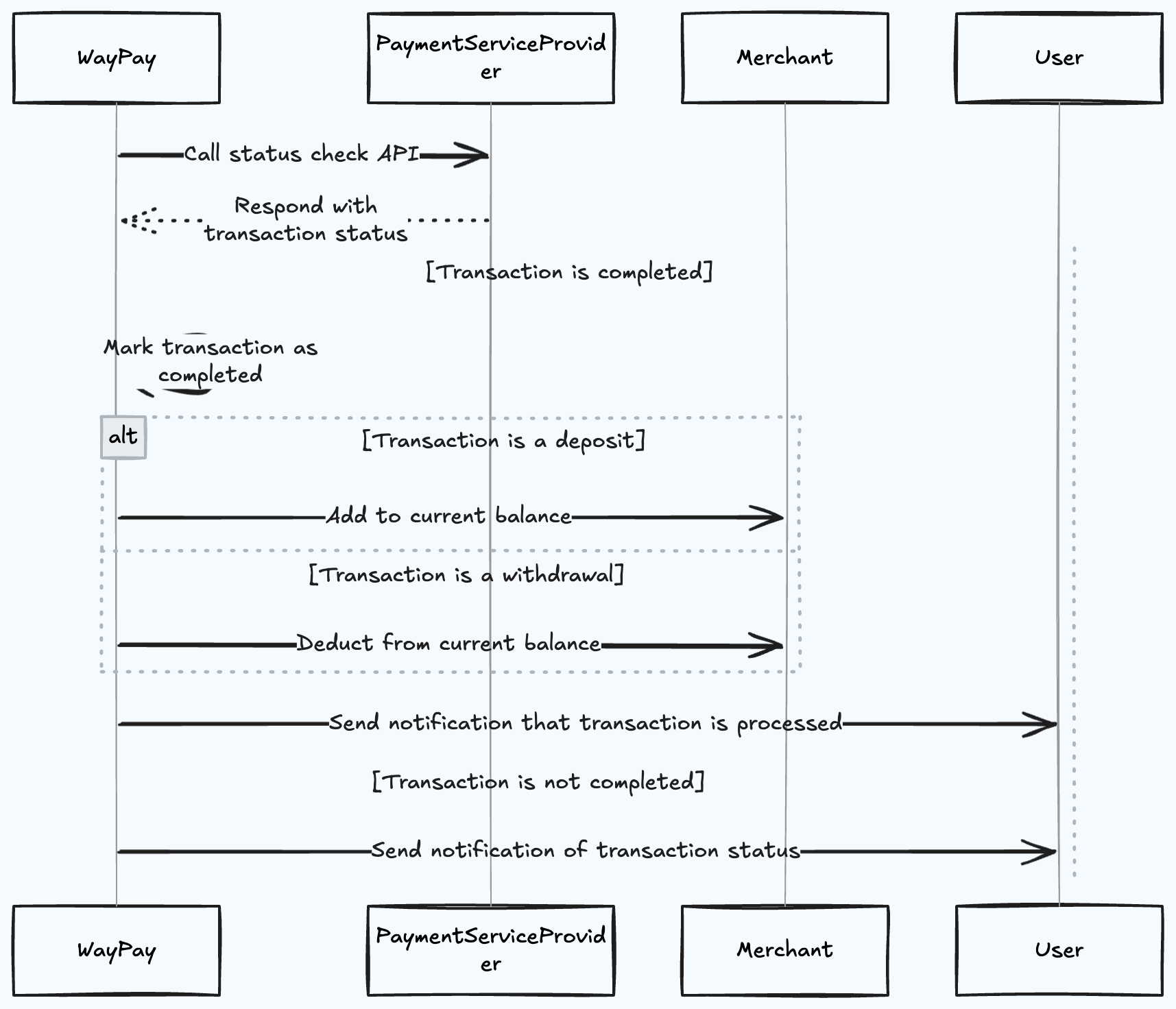
After a payment is initiated, Waypay continuously monitors and updates the transaction status. This guide explains the status processing flow and how different transaction types (deposits and withdrawals) affect your merchant balance, including fee deductions.Flow Diagram
Status Processing Flow
Step 1: Status Check API Call
WayPay periodically calls the Payment Service Provider’s status check API to verify the current state of the transaction.Step 2: Transaction Status Response
The Payment Service Provider responds with the current transaction status. This could be:- Pending
- Completed
- Failed
- Cancelled
- Processing
Step 3: Mark Transaction as Completed
If the transaction is confirmed as completed, WayPay marks it accordingly in the system.Balance Updates Based on Transaction Type
For Deposit Transactions
When a transaction is marked as a deposit:-
Calculate Net Amount
- Transaction fee is deducted from the deposit amount
- Net amount = Deposit amount - Transaction fee
-
Add Net Amount to Balance
- Only the net amount (after fee deduction) is added to your merchant balance
- Balance increases by the net amount upon confirmation
- Funds become available for use
The customer pays the full deposit amount. The fee is deducted from what you receive, not charged to the customer separately.
For Withdrawal Transactions
When a transaction is marked as a withdrawal:-
Calculate Total Deduction
- Transaction fee is added to the withdrawal amount
- Total deduction = Withdrawal amount + Transaction fee
-
Deduct Total from Balance
- The withdrawal amount plus fee is deducted from your merchant balance
- Customer receives the full withdrawal amount
- Balance decreases by the total amount
Step 4: Merchant and User Notifications
After processing the transaction:-
Transaction Processed Notification
- If the transaction is completed, both merchant and user receive a success notification
- Notification includes transaction details, fees, and updated balance
-
Transaction Status Notification
- If the transaction is not completed (failed/cancelled), both parties are notified
- Notification includes the reason for failure if available
Fee Information in Transactions
When querying transactions, you’ll receive detailed fee information:amount: Original deposit amountfee: Transaction fee deductednetAmount: Amount added to your balance (amount - fee)
amount: Withdrawal amount sent to customerfee: Transaction fee chargednetAmount: Total deducted from your balance (amount + fee)
Transaction Statuses
Pending
Pending
Description: Transaction is initiated but not yet confirmedBalance Impact: No change (fees not yet applied)Actions:
- Wait for confirmation
- Customer may need to complete OTP verification
- Typically resolves within 5-10 minutes
Processing
Processing
Description: Transaction is being processed by the payment providerBalance Impact: No change yet (fees pending confirmation)Actions:
- Transaction is in progress
- For deposits: Awaiting confirmation from mobile wallet
- For withdrawals: Bank transfer in progress
Completed
Completed
Description: Transaction successfully completedBalance Impact:
- Deposits: Balance increases by (amount - fee)
- Withdrawals: Balance decreases by (amount + fee)
- No further action needed
- Order can be fulfilled (for deposits)
- Payout has been sent (for withdrawals)
- Fee has been charged
Failed
Failed
Description: Transaction could not be completedBalance Impact: No change (fees not charged for failed transactions)Common Reasons:
- Insufficient funds (for deposits or withdrawals)
- Invalid account details
- Customer cancelled
- Technical error
- Check failure reason
- Retry if appropriate
- Contact support if needed
Cancelled
Cancelled
Description: Transaction was cancelled by user or systemBalance Impact: No change (fees reversed if previously charged)Actions:
- Transaction cannot be resumed
- Create new transaction if needed
Expired
Expired
Description: Transaction timed out without completionBalance Impact: No change (fees not charged)Typical Reasons:
- Customer didn’t complete OTP verification
- Session timeout
- Checkout URL expired
- Create new transaction
Monitoring Transaction Status
Using Webhooks (Recommended)
Set up webhooks to receive real-time status updates with fee information:Using API Polling
Query transaction status using the Transaction API:Balance Reconciliation
Checking Current Balance
Query your wallet balance to see pending and available funds:Understanding Balance Types
When calculating available balance for withdrawals, remember to account for the withdrawal fee that will be added to your requested amount.
Best Practices
Use Webhooks
Set up webhooks instead of polling for real-time updates including fee information
Handle All Statuses
Implement logic to handle all possible transaction statuses in your application
Track Fees
Monitor and track transaction fees for accurate financial reporting
Reconcile Daily
Perform daily balance reconciliation including fee verification
Notification Channels
When transactions are processed, notifications include fee details and are sent through:- Webhooks - Real-time HTTP callbacks to your server with complete transaction details
- Email - Sent to merchant and customer email addresses with fee breakdown
- SMS - Optional SMS notifications for high-value transactions
- Dashboard - Visible in your merchant dashboard with detailed fee information
Troubleshooting
Transaction Stuck in Pending
Transaction Stuck in Pending
Possible Causes:
- Customer hasn’t completed OTP verification
- Payment provider experiencing delays
- Network connectivity issues
- Wait 15-30 minutes for auto-resolution
- Contact customer to complete OTP
- Check payment provider status page
- Contact support if issue persists
Balance Not Updated After Completion
Balance Not Updated After Completion
Possible Causes:
- Transaction still processing
- Status not yet confirmed
- System delay
- Query balance API to get latest state
- Check transaction status and fee details
- Allow 5-10 minutes for processing
- Contact support if delayed beyond 1 hour
Unexpected Fee Amount
Unexpected Fee Amount
Possible Causes:
- Different fee rate applied
- Special transaction type
- Volume-based pricing tier
- Check your merchant dashboard for fee schedule
- Review transaction details in API response
- Contact support for fee structure clarification
Insufficient Balance for Withdrawal
Insufficient Balance for Withdrawal
Possible Causes:
- Not accounting for withdrawal fee
- Pending transactions reducing available balance
- Calculate: withdrawal amount + fee before initiating
- Check availableBalance, not just currentBalance
- Wait for pending transactions to clear
- Add funds to cover the total amount needed
Next Steps
Transaction API
Query transaction details including fees
Webhooks Guide
Set up status notifications
Balance API
Check wallet balance
Fee Structure
Understand transaction fees in detail